


Card Migration
Learn how to migrate existing card data to Unzer without requiring your customers to re-enter their details.
Card migration lets you move existing cardholder data from your current payment provider to Unzer. Once migration is complete, your customers can continue making payments seamlessly using their existing saved cards, now securely tokenised by Unzer.
Overview
| What happens | Details |
|---|---|
| Card data is transferred | Your existing card data is securely moved to Unzer |
| Cards are tokenised | Each card is converted into an Unzer payment type |
| No customer disruption | Your customers experience no interruption to their payment journey |
Who this is for
- Merchants who want to migrate their existing card data to Unzer.
- PSPs responsible for preparing and submitting the migration file.
Supported card schemes
| Card scheme | Migration support | Notes |
|---|---|---|
| Visa | Supported | Accepted for migration |
| Mastercard | Supported | Accepted for migration |
| American Express (Amex) | Not supported | Records will fail during processing |
Important
Only Visa and Mastercard records are accepted. Do not include Amex or any other card scheme in your migration file. Unsupported records will fail during processing.
How it works
Card migration involves three parties working together.
| Party | Role |
|---|---|
| Merchant | Confirms readiness and initiates the migration request |
| PSP | Prepares, encrypts, and submits the migration file |
| Unzer | Processes the migration and returns results |
High-level migration flow
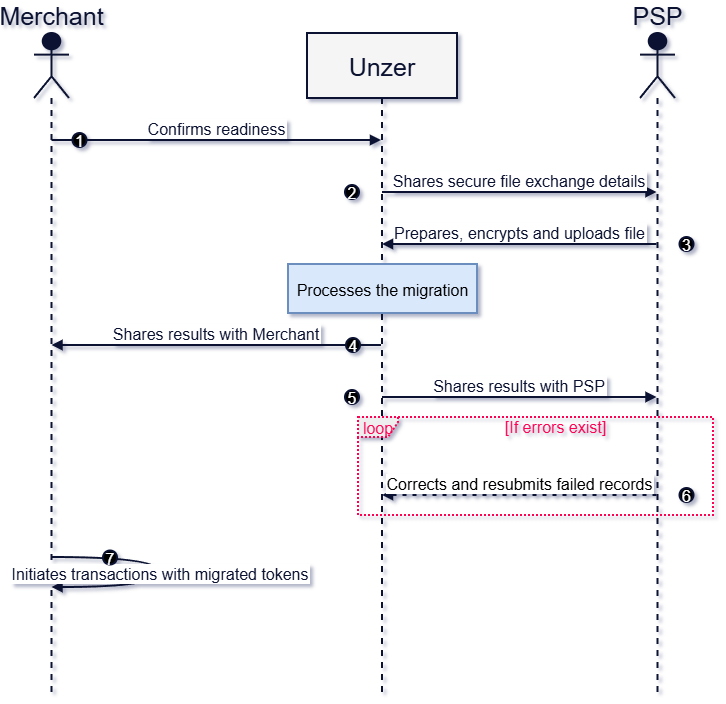
Prerequisites
Before migration can begin, all of the following must be in place.
| Requirement | Merchant | PSP |
|---|---|---|
| Unzer onboarding fully complete | Required | — |
| PSP informed of migration request | Required | — |
| SSH key authentication configured for SFTP | — | Required |
| PGP public key received from Unzer | — | Required |
| SFTP host and folder details received from Unzer | — | Required |
For merchants
As a merchant, your role in the migration process is straightforward. You do not prepare or submit the migration file — your PSP handles that on your behalf.
Your responsibilities are to:
- Confirm your Unzer onboarding is complete
- Confirm readiness to Unzer
- Coordinate with your PSP
- Receive and review migration results
- Initiate transactions after migration is confirmed complete
Step-by-step guide
Step 1: Complete your onboarding
Your Unzer onboarding must be fully complete before migration can begin.
Onboarding includes:
- Unzer account setup complete
- Payment integration confirmed
- Commercial agreement in place
- Unzer migration contact confirmed
Important
Migration cannot start until onboarding is confirmed complete. Contact your Unzer account manager if you are unsure about your onboarding status.
Step 2: Confirm you are ready
Once onboarding is complete, contact your Unzer account manager or Tech Expert to confirm you are ready to proceed.
What to confirm:
- Onboarding is fully complete
- Your PSP is aware of and aligned on the migration request
- Migration timeline has been agreed with your PSP
What happens next:
Unzer will coordinate directly with your PSP to share the secure file exchange details needed to begin migration.
Step 3: Your PSP submits the migration file
At this stage, your PSP takes over. Your PSP will:
- Receive the PGP public key and SFTP details from Unzer
- Prepare the migration file in the required format
- Encrypt and upload the file securely
- Confirm the upload to Unzer
Note
You do not need to prepare or submit any files. Your responsibility at this stage is to ensure your PSP is informed and ready to proceed.
Step 4: Receive your migration results
Once Unzer has processed the migration, you will receive:
- Confirmation that processing is complete
- An output file with migration results
- Details of any failed records, if applicable
Understanding your results:
| Result | Meaning | What to do |
|---|---|---|
| All records successful | All cards migrated | Proceed to initiate transactions |
| Some records failed | Partial migration | Share failed records with your PSP for correction |
| All records failed | Migration unsuccessful | Work with your PSP to investigate and resubmit |
Step 5: Handle failed records
If any records failed during migration:
- Review the failed record details provided by Unzer.
- Share the failed records with your PSP.
- Ask your PSP to correct and resubmit.
- Wait for Unzer to confirm reprocessing is complete.
Note
Only failed records need to be corrected and resubmitted. Cards that migrated successfully do not need any further action.
Step 6: Initiate transactions
Once Unzer confirms that migration is complete:
- Use the migrated card tokens to initiate subsequent transactions.
- Contact Unzer support if you encounter any issues after migration.
After successful migration, your customers’ card data is available as Unzer tokenised cards and can be used to process payments immediately.
What your customers experience
Card migration is completely transparent to your customers. They:
- Do not need to take any action
- Do not need to re-enter their card details
- Will not experience any disruption to their payment experience
Merchant checklist
Before migration
- Unzer onboarding is fully complete
- PSP is informed of the migration request
- Migration timeline agreed with PSP
- Readiness confirmed to Unzer
During migration
- PSP has received file exchange details from Unzer
- PSP has confirmed file upload to Unzer
- Processing is underway
After migration
- Migration results received from Unzer
- Output file reviewed
- Failed records shared with PSP if applicable
- PSP has corrected and resubmitted failed records if needed
- Migration completion confirmed by Unzer
- Transactions initiated successfully
Merchant FAQ
When can I start initiating transactions?
Once Unzer confirms that migration is complete and the output confirms successful records.
What happens if some cards fail to migrate?
Unzer will provide details of the failed records. Unzer shares these with your PSP, who will correct and resubmit them. You will be notified once reprocessing is complete.
How long does migration take?
Processing time depends on the file size and batch volume. Unzer will keep you informed throughout the process.
Which card schemes are supported?
Visa and Mastercard only. Amex and other card schemes are not supported.
Do I need to prepare the migration file?
No. Your PSP is responsible for preparing, encrypting, and submitting the migration file to Unzer.
Will my customers be affected?
No. Migration is completely transparent to your customers. They do not need to take any action and will not experience any disruption.
Do I need to notify my customers about the migration?
No. Unless specifically advised by Unzer or your legal team, you do not need to contact your customers.
Is my card data safe during migration?
Yes. All files are encrypted using PGP encryption and transferred via a secure SFTP channel. Unzer does not accept or process unencrypted card data.
Who do I contact if I have questions?
Contact your Unzer account manager or Unzer Tech Expert for any questions about the migration process.
For PSPs
As a PSP, you are responsible for the technical submission of the merchant’s card data to Unzer.
Your responsibilities are to:
- Provide your SSH public key to Unzer for SFTP setup
- Receive secure file exchange details from Unzer
- Prepare the migration file in the required Unzer CSV format
- Name the file following the Unzer file naming convention
- Encrypt the file using the Unzer PGP public key
- Upload the encrypted file securely to the Unzer SFTP folder
- Confirm the upload to Unzer by email
- Correct and resubmit any failed records if required
Step-by-step guide
Step 1: Provide your SFTP public key to Unzer
Before Unzer can configure your SFTP access, you must provide your SSH public key to Unzer Tech Expert.
Generate an SSH keypair if you do not already have one, then send your SSH public key to Unzer Tech Expert. Unzer will use this to set up your SFTP access before sending you the connection details.
Note
Only your public key should be shared with Unzer. Keep your private key secure and do not share it. You will use your private key to authenticate when connecting to the Unzer SFTP server.
What happens next:
Unzer will configure your SFTP access and send you the file exchange details required to proceed.
Step 2: Receive secure file exchange details
Before you can submit any files, you must receive the following from Unzer:
- PGP public key for file encryption
- SFTP folder details including host and path
Note
Unzer Tech Expert will send these to you by email once the merchant’s onboarding is confirmed as complete. If you have not received these details, contact Unzer Tech Expert before proceeding.
Step 3: Prepare the migration file
File type and format
| Requirement | Detail |
|---|---|
| File type | CSV (Comma Separated Values) |
| Encoding | UTF-8 |
| Header row | Required — first row must contain column headers |
| Supported card schemes | Visa and Mastercard only |
| Delimiter | Comma |
Warning
The migration file must follow the Unzer CSV format exactly. Files submitted in an incorrect format will fail during processing. Validate your file carefully before encryption and upload.
File naming convention
All migration files must follow the Unzer file naming convention exactly.
Format: migration_{PSP_ID}_{YYYYMMDD}_{XX}.pgp
| Component | Description | Example |
|---|---|---|
migration_ | Fixed prefix — mandatory for all files | migration_ |
{PSP_ID} | Your PSP ID as provided by Unzer | 001 |
{YYYYMMDD} | Date of file preparation in year-month-day format | 20240228 |
{XX} | Iteration count — starts at 01 and increments per submission | 01, 02, 03 |
.pgp | Extension added after PGP encryption | .pgp |
Examples:
| File name | Description |
|---|---|
migration_001_20240228_01.pgp | First file submitted by PSP 001 on 28 Feb 2024 |
migration_001_20240228_02.pgp | Second file submitted by PSP 001 on the same day |
migration_172_20240301_01.pgp | First file submitted by PSP 172 on 1 Mar 2024 |
Note
The file name must reflect the date the file was prepared, not the date it was uploaded. If you submit more than one file on the same day, increment the iteration counter. Do not reuse file names across submissions.
CSV field definitions
The migration CSV file must include the following columns in the exact order specified.
| Column | Field name | Type | Required | Description |
|---|---|---|---|---|
| 1 | pan | String | Yes | Full card number (PAN) |
| 2 | cardholder_name | String | Yes | Full name of the cardholder |
| 3 | expiry_date | String | Yes | Card expiry date in YYYY-MM format (e.g. 2026-12) |
| 4 | scheme | String | Yes | Card scheme — Visa or Mastercard only |
| 5 | scheme_transaction_id | String | Yes | Scheme-level transaction reference ID |
| 6 | scheme_amount_exemption | String | No | Scheme amount exemption value if applicable |
| 7 | recurrence_type | String | Yes | Type of recurrence for the card |
| 8 | merchant_name | String | Yes | Name of the merchant associated with the card |
| 9 | customer_id | String | No | Customer identifier |
| 10 | payment_instrument_id | String | No | Payment instrument identifier |
Warning
Do not include American Express or any other card scheme in your file. Unsupported scheme values will cause record-level failures during processing.
Sample CSV
The following sample shows the correct CSV layout before encryption.
Header row:
pan,cardholder_name,expiry_date,scheme,scheme_transaction_id,scheme_amount_exemption,recurrence_type,merchant_name,customer_id,payment_instrument_id
Sample records:
4111111111111111,John Smith,2026-12,Visa,TXN123456789,,RECURRING,Example Merchant,CUST001,PI001
5500005555555559,Jane Doe,2025-08,Mastercard,TXN987654321,,RECURRING,Example Merchant,CUST002,PI002
Note
The sample above uses test card numbers only. Never share or transmit an unencrypted file containing real cardholder data. Always encrypt the file using Unzer’s PGP public key before upload or sharing.
Before encrypting, confirm:
- All records are in the correct Unzer CSV format
- Only Visa and Mastercard records are included
- All mandatory fields are populated
- No duplicate records exist
- Data quality has been validated
Step 4: Encrypt the migration file
Encrypt the prepared CSV file using the PGP public key provided by Unzer.
| Requirement | Detail |
|---|---|
| Encryption method | PGP (Pretty Good Privacy) |
| Key to use | Unzer PGP public key as provided by Unzer Tech Expert |
| File extension after encryption | .pgp |
Warning
Only encrypted files are accepted by Unzer. If an unencrypted file is uploaded, it will be deleted immediately and treated as a security incident. Always encrypt your file before uploading.
After encryption:
- The file extension must be
.pgp - Do not modify the file after encryption
- Do not rename the file after encryption
- The final file name must match the Unzer naming convention, including the
.pgpextension
Step 5: Upload the encrypted file to SFTP
Upload the encrypted migration file to the designated Unzer SFTP folder.
| Requirement | Detail |
|---|---|
| Upload method | SFTP |
| Authentication | SSH key authentication |
| Folder | As provided by Unzer Tech Expert |
| File | Encrypted file only |
Note
SFTP host, folder path, and SSH key details are provided by Unzer Tech Expert. Do not upload to any folder other than the one specified. Contact Unzer Tech Expert if you are unsure of the correct folder.
Step 6: Confirm upload by email
After uploading the file, send an email confirmation to Unzer Tech Expert.
Your confirmation email must include:
- File name including full naming convention reference
- Upload timestamp
- SFTP folder used
- Merchant name or reference
- PSP ID
- Any relevant processing context
Note
Unzer Tech Expert uses your confirmation to verify the correct file is ready for processing. Without confirmation, processing may be delayed.
Step 7: Wait for processing
After Unzer receives your upload confirmation:
- Unzer Tech Expert will start the migration batch.
- Unzer will process the file internally.
- You do not need to take any action during this step.
Step 8: Receive migration results
After processing, Unzer will:
- Confirm migration completion
- Provide an output file with migration results
- Share details of any failed records
Understanding the results:
| Result | Meaning | What to do |
|---|---|---|
| All records successful | Full migration complete | Notify merchant — no further action |
| Some records failed | Partial migration | Correct failed records and resubmit |
| All records failed | Migration unsuccessful | Investigate root cause and resubmit |
Step 9: Correct and resubmit failed records
If failed records are returned:
- Open the output file provided by Unzer.
- Review the failed records and identify the issues.
- Correct the records.
- Prepare a new migration file with only the corrected records.
- Follow the same process from Step 3.
Note
Resubmission follows the same process as the original submission from Step 3: prepare → encrypt → upload → confirm. Include only the corrected records in the resubmission file.
Data security requirements
As a PSP submitting card data to Unzer, you must:
- Encrypt all files using Unzer’s PGP public key before upload
- Use SSH key authentication for SFTP access
- Never submit unencrypted card data
- Handle card data in compliance with PCI DSS and applicable data protection regulations
- Not retain card data beyond the period required for migration
Warning
Any unencrypted files detected during submission will be deleted immediately and treated as a security incident. Unzer will notify the relevant parties and investigate. Ensure all files are encrypted before upload without exception.
PSP checklist
Before submission
- SSH public key provided to Unzer for SFTP setup
- PGP public key received from Unzer
- SFTP folder details received from Unzer
- SSH key authentication configured
- Migration file prepared in Unzer CSV format
- All mandatory fields populated
- Only Visa and Mastercard records included
- File name follows Unzer naming convention
- File validated before encryption
- File encrypted using Unzer PGP public key
- File extension is
.pgpafter encryption
Submission
- Encrypted file uploaded to correct SFTP folder
- Upload confirmation email sent to Unzer with file name, timestamp, PSP ID, and merchant reference
After processing
- Migration results received from Unzer
- Output file reviewed
- Failed records identified if applicable
- Corrected file prepared with incremented file name
- Corrected file resubmitted if needed
- Final completion confirmed by Unzer
PSP FAQ
How do I receive the PGP public key and SFTP details?
Unzer Tech Expert will send these to you by email once the merchant’s onboarding is confirmed as complete. Contact Unzer Tech Expert if you have not received them.
What file format is required?
You must use a CSV file formatted according to the Unzer CSV field specification. The file must be UTF-8 encoded and include the correct column headers in the first row.
What is the file naming convention?
Files must follow this exact format: migration_{PSP_ID}_{YYYYMMDD}_{XX}.pgp
For example:
migration_001_20240228_01.pgp— first file submitted on 28 Feb 2024migration_001_20240228_02.pgp— second file submitted on the same day
What if I submit more than one file on the same day?
Increment the iteration counter in the file name. For example, the second file submitted on the same day would be migration_001_20240228_02.pgp.
What encryption method should I use?
Use PGP encryption with the Unzer PGP public key provided by Unzer Tech Expert. The encrypted file must have the .pgp extension. Do not modify or rename the file after encryption.
What happens if I upload an unencrypted file?
The file will be deleted immediately and the event will be treated as a security incident. Always encrypt your file before uploading without exception.
What should I do if the SFTP upload fails?
Contact Unzer Tech Expert immediately with the error details. Do not retry until you have confirmed the issue with Unzer.
How will I know when processing is complete?
Unzer Tech Expert will confirm completion and share the migration result output with you.
What if some records fail?
Unzer will share the failed record details with you. Correct the failed records and resubmit a new file following the same process from Step 3. Use a new file name with an incremented iteration counter.
Can I resubmit only the failed records?
Yes. Prepare a corrected file containing only the failed records and resubmit following the same process. Include only corrected records in the resubmission file.
What if the merchant’s onboarding is not yet complete?
Do not submit any files until onboarding is confirmed as complete. Confirm onboarding status with the merchant or Unzer before proceeding.
How should I handle card data before and after submission?
Handle all card data in compliance with PCI DSS and applicable data protection regulations. Do not retain card data beyond what is required for the migration process.
Who is my point of contact at Unzer?
Your point of contact is Unzer Tech Expert. Contact them for all migration-related queries including file format questions, PGP key and SFTP details, upload issues, processing status, and failed record queries.
Glossary
| Term | Definition |
|---|---|
| Card migration | The process of securely transferring existing cardholder data from one payment provider to Unzer, without requiring customers to re-enter their details |
| PAN | Primary Account Number — the full card number printed on a payment card |
| PGP | Pretty Good Privacy — an encryption method used to secure migration files before transfer |
| PSP | Payment Service Provider — the party responsible for preparing and submitting the migration file to Unzer |
| SFTP | Secure File Transfer Protocol — the secure channel used to upload migration files to Unzer |
| SSH key | A cryptographic key used to authenticate SFTP connections |
| Tokenisation | The process of replacing sensitive card data with a unique, non-sensitive identifier (token) that can be used for future transactions |
| Unzer payment type | The tokenised representation of a card within the Unzer platform, used to process payments |
| Recurrence type | Indicates how a card is used for repeat payments (e.g. RECURRING) |
| Scheme transaction ID | A reference ID assigned at the card scheme level (Visa or Mastercard) to identify a transaction |
| Iteration counter | A two-digit number appended to the file name (01, 02, etc.) to distinguish multiple files submitted on the same day |