


Refund manager
Refund manager for your Unzer Payment Shopware 6 plugin.
With Unzer Refund Manager for Shopware 6, you can refund any amount for the entire order or on a single order line. You can restock item(s) in the same refund flow.
You will also get an overview that tells you exactly how much you have refunded and how many times you did a refund.
Release information
Latest plugin version: 1.0.0 Released on: Februar 13, 2026 Supported Shopware versions: 6.6.x.x
Download: GitHub
- First release
- Support for Shopware 6.7.x.x
Install the plugin
To learn how to install Composer, go here.
Download the latest version of the Refund manager plugin from GitHub.
Upload the plugin files into the custom/plugins folder in your shopware installation.
Inside the plugin directory custom/plugins/UnzerRefunds, run
composer install --no-dev
- Switch to admin and install the plugin using the Shopware plugin manager and configure it as you need.
The plugin is now available in My extensions list.
Open Refund Manager
To open the refund manager, go to Orders > Open any order > Unzer Payment > Show Refund Manager.
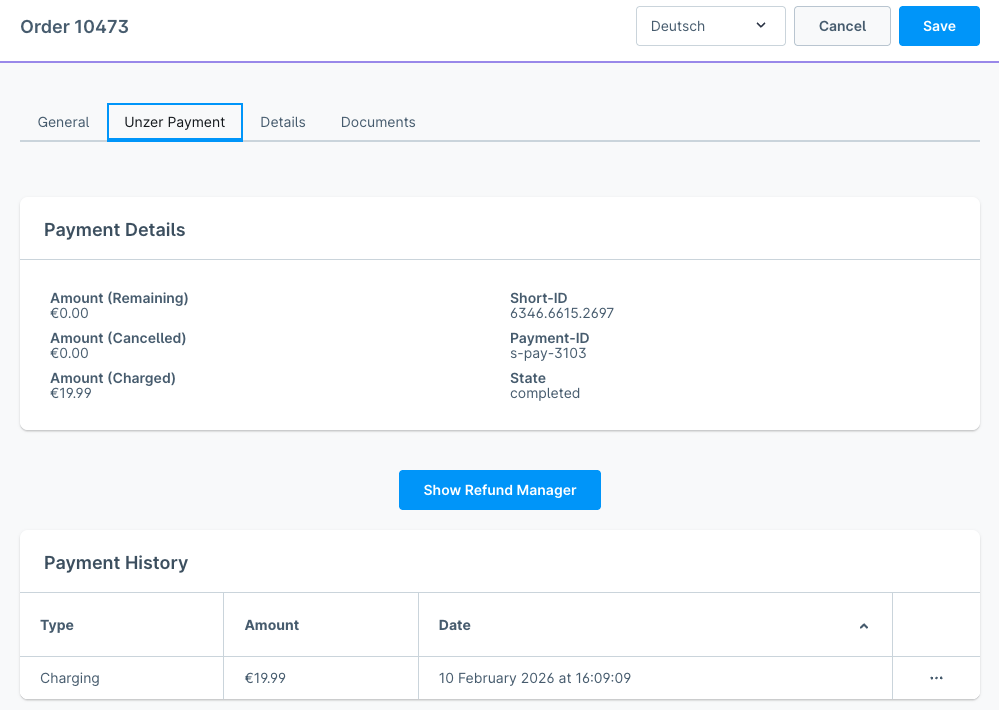
Refund Manager Overview
Once you have opened the refund manager, you get an order overview with all the order lines, how many of each product the customer has purchased, total per order line and order total.
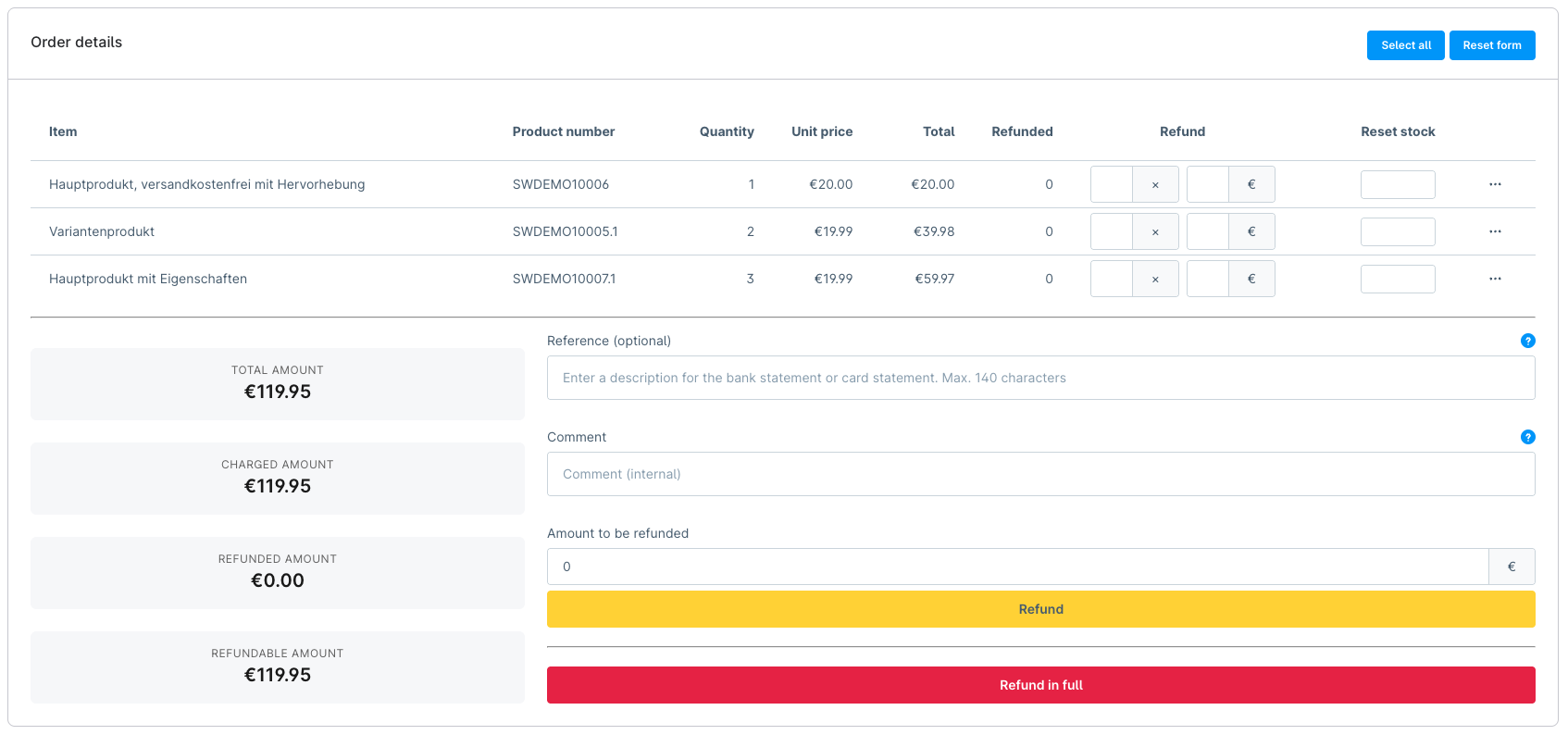
Partial refunds
If you want to do a partial refund, you have three options.
- Enter an amount in the Amount to be refunded field and click Refund.

- Enter an amount on the order line you wish to refund and click Refund.

- Enter how many items on an order line you wish to refund and click Refund.

You can also combine options 2 and 3 from the above examples.
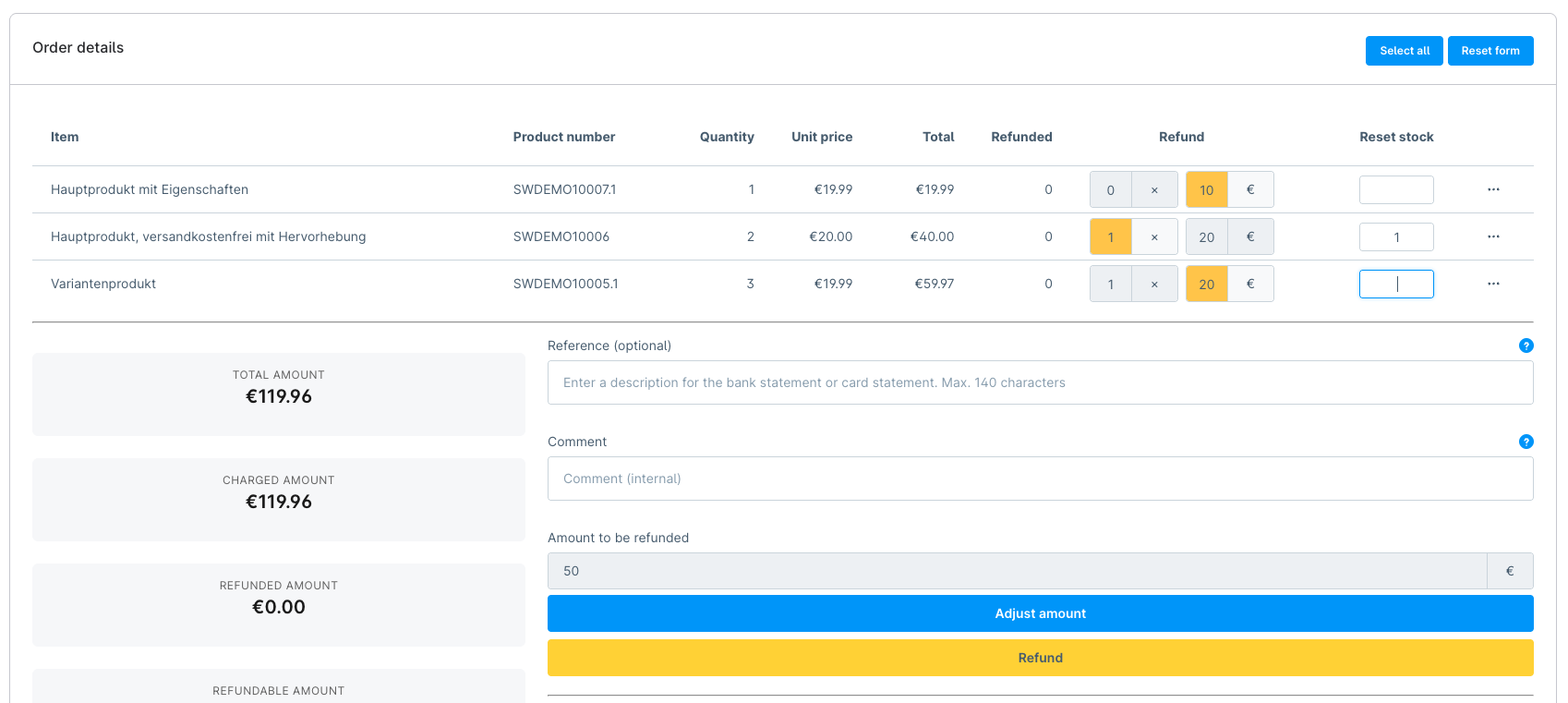
Refund details:

Stock options
If you want to put items back in stock, use the fields in the Reset stock column. It will auto update if you select to refund one or more items from an order line or the amount you refund for an order line is bigger than the price for one item.
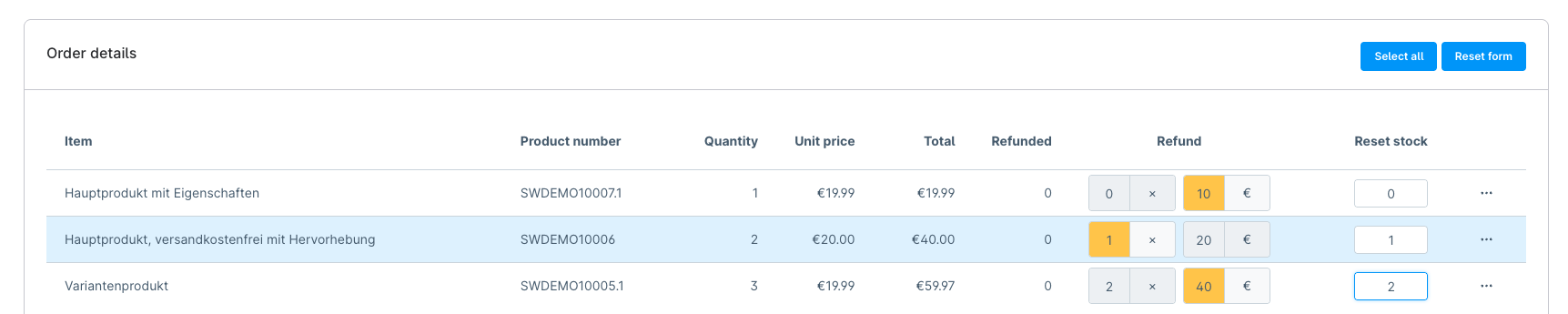
Refund in full with details
If you want to refund the entire order and have details about how many of each product was refunded, click Select all and then the yellow button Refund.
Under Items in Order details you can see exactly which products have been refunded, how many of each product and the total price per order line. In the left column, marked with green, you can see the total amount of the combined refund.
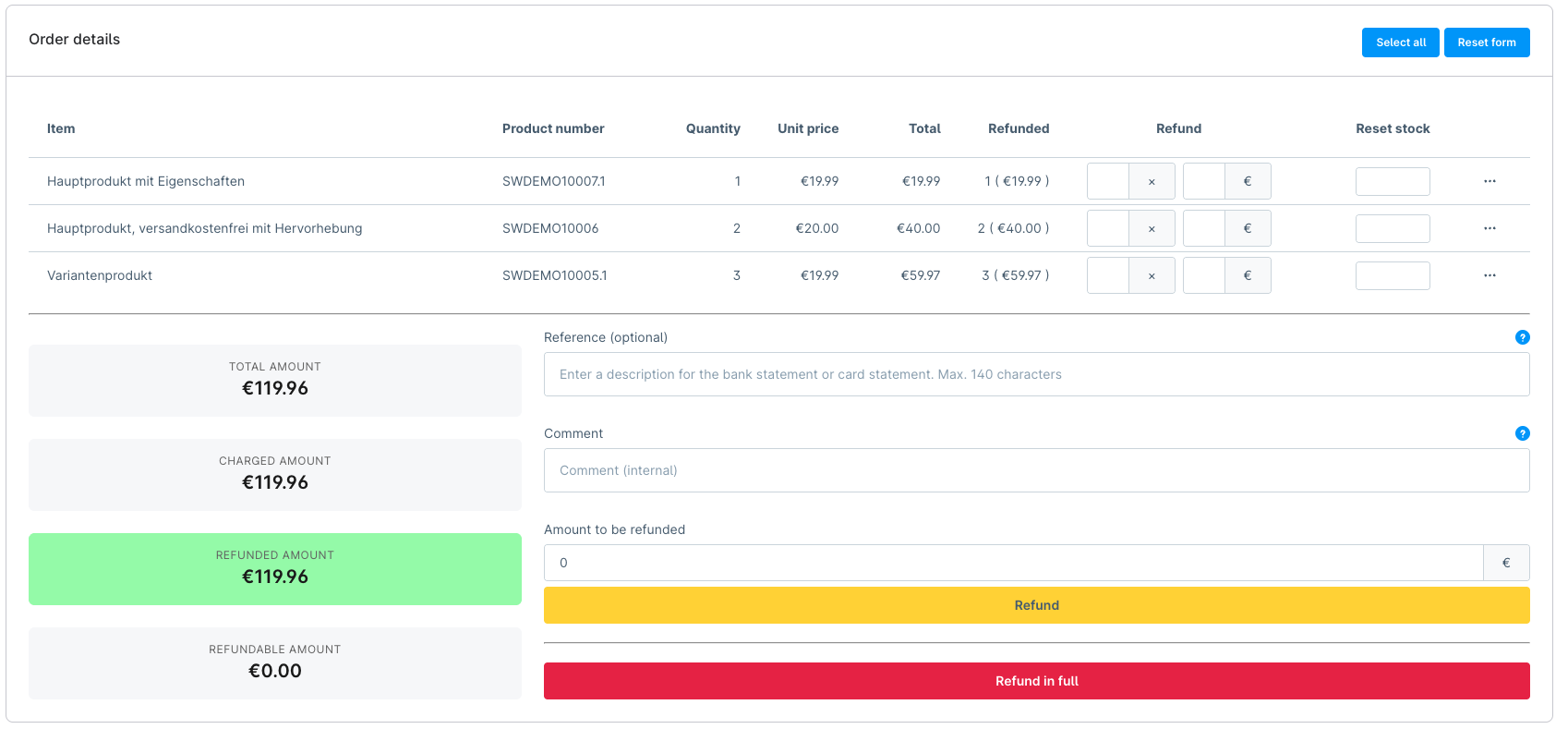
Refund details:

Refund in full without details
If you want to refund the entire order, you can simply click the red button Refund in full. This will create one refund with no details except that the order was refunded and the amount.
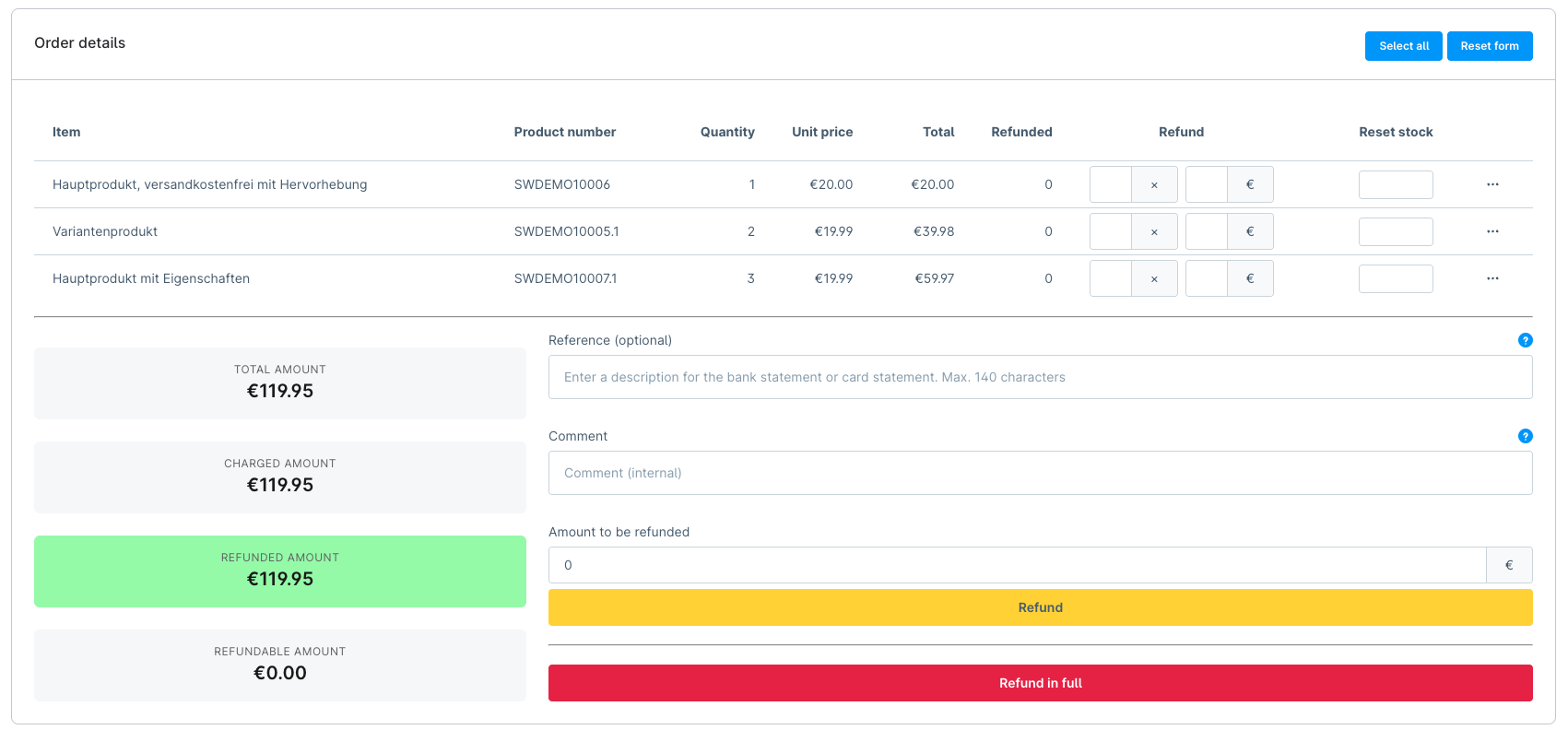
Refund details:
