Install the plugin
Learn how to install and configure the plugin. Some features require more setup; go to the next step at the bottom of this page to learn more.
Before you begin
Before installing the plugin, make sure that you are logged in to Shopify. If you do not have a Shopify shop, you can create one from Shopify signup.

Please be aware that third-party plugins and templates may impact the functionality of the Unzer plugin. Therefore, prior to using or updating them, ensure that you verify any changes on the test system.
Step 1: Generate your API keys
Request test and live key pairs for your Unzer merchant account.
Step 2: Install the plugin
Go to Checkout Booster App on the Shopify App Store. On the Shopify App Store you must log in or create a Shopify store to proceed. Then click Install and if you have more stores, select the store where you want to install the app.
Step 3: Install in your store
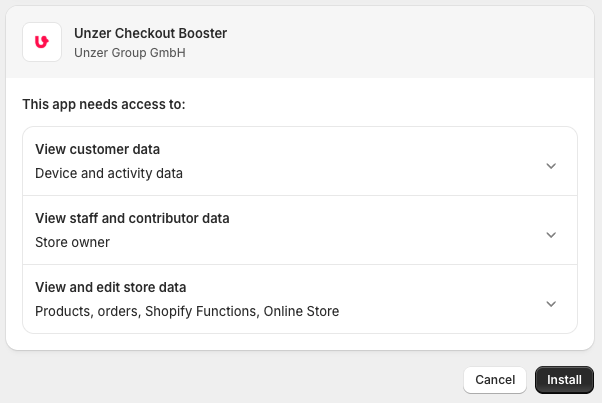
Click Install in your shop backend to proceed.
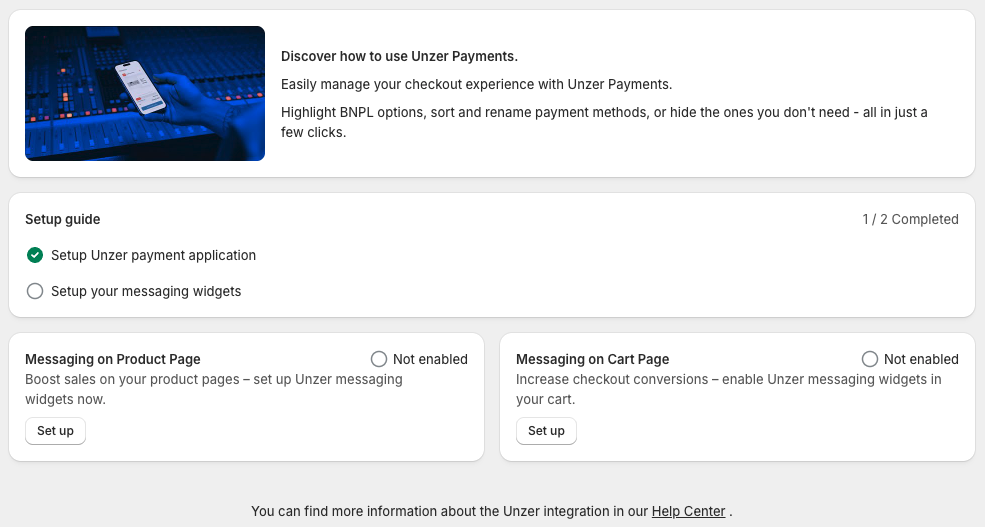
When the app is installed, you will see the screen below.
Step 4: Configure Checkout Booster App
Once the app is installed, you have two options.
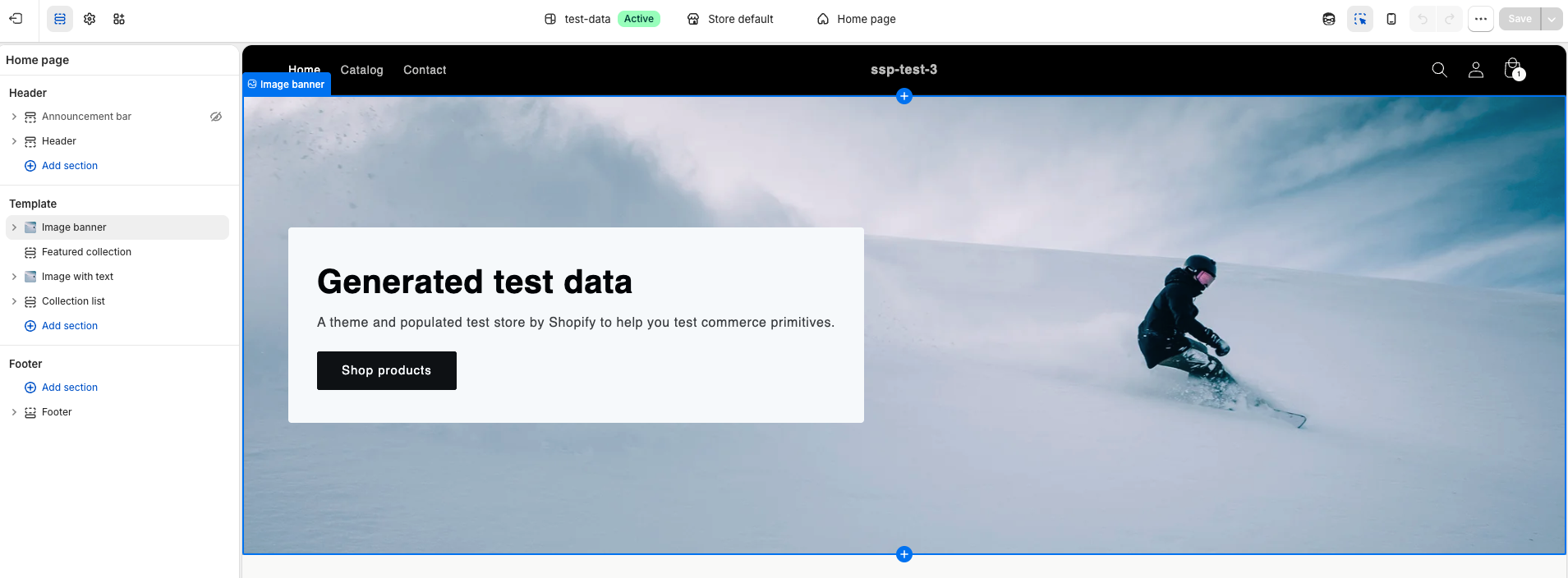
You can choose to set up Unzer Invoice and/or Unzer Installment widgets in your store. This is done with the Shopify Theme Editor.
You must have Unzer Invoice or Unzer Installment payment app installed to do this.
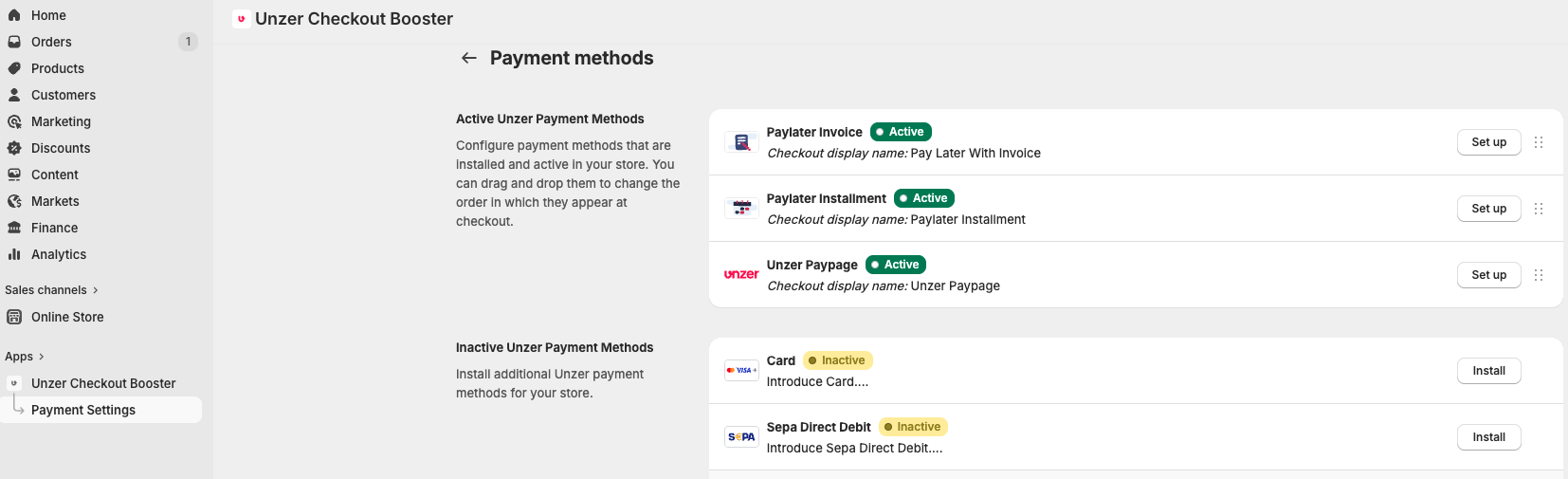
You can install or edit Unzer payment methods. Select Shopify Checkout Booster in the menu and then Payment Settings.