


Install Payment Apps
Install Payment Apps directly from the Checkout Booster App.
Payment Settings
To access Payment settings, click Unzer Checkout Booster > Payment settings from the front page of the Shopify Admin.
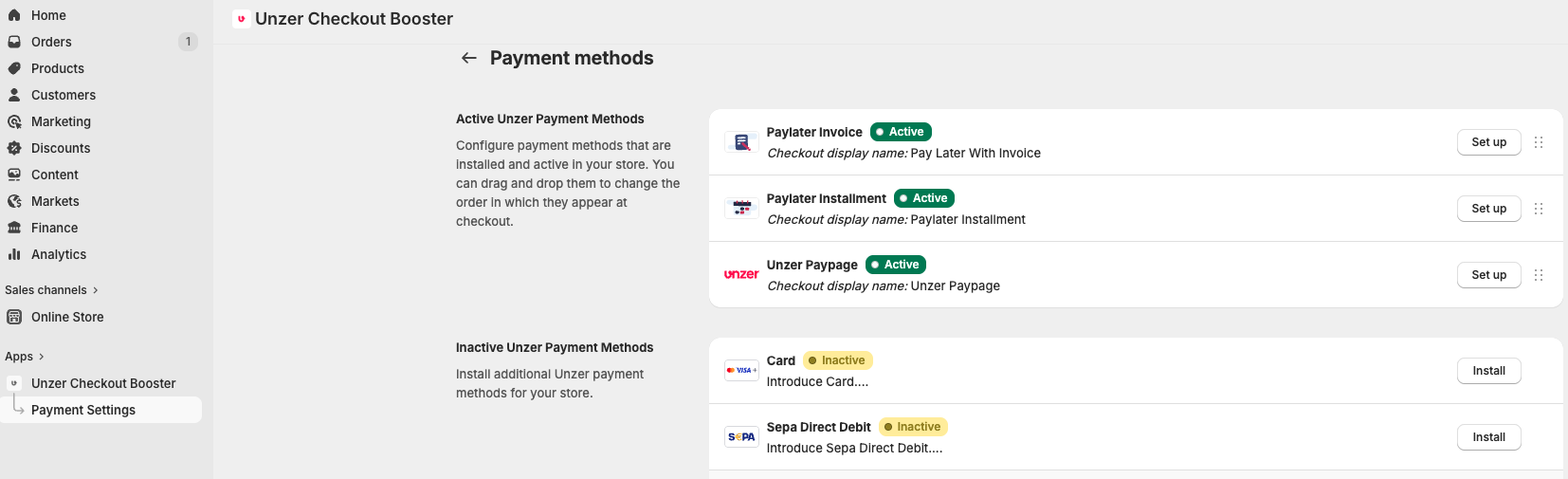
Install Payment Method
To install a payment method from the Checkout Booster App, click Install for the payment method you wish to install.
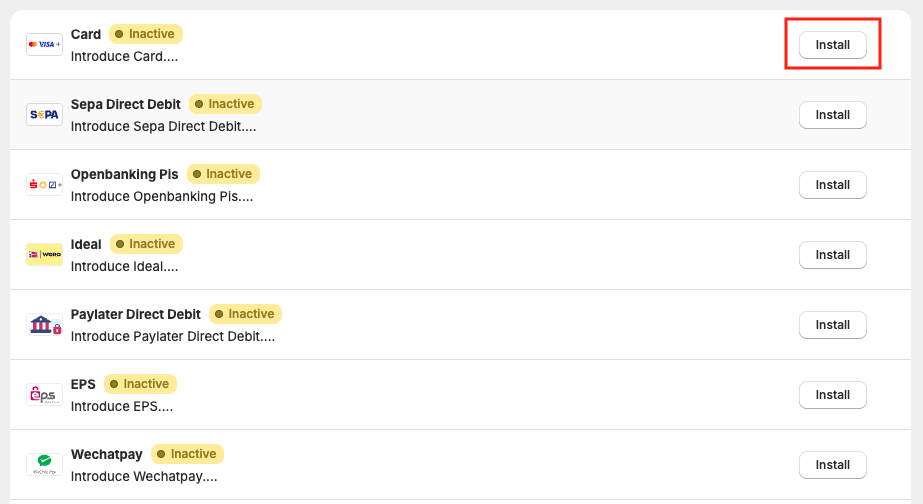
Select a store to install the payment app in; the rest of the installation flow is the same for our other payment apps.
Checkout Booster Payment Setup
Click Set up for the payment app you wish to configure. In the settings pop-up, you can set up any of the payment methods to match your preferences.
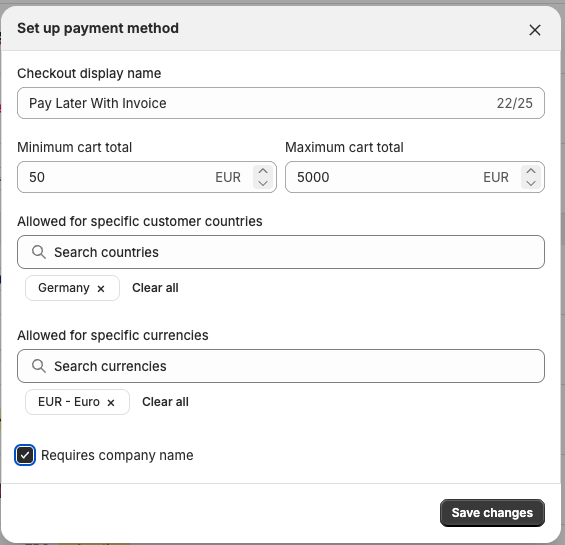
| Field name | Description |
|---|---|
| Checkout display name | The name shown to customers for this payment method at checkout. Maximum 25 characters. |
| Minimum cart total | The minimum order amount required for this payment method to be available. Set in the store currency (e.g., EUR). |
| Maximum cart total | The maximum order amount for which this payment method is available. Set in the store currency (e.g., EUR). |
| Allowed for specific customer countries | Restricts this payment method to customers from selected countries. Leave empty to allow all countries. |
| Allowed for specific currencies | Restricts this payment method to selected currencies. Leave empty to allow all currencies. |
| Requires company name | When enabled, customers must provide a company name to use this payment method. |