


Manage transactions
Manage transactions in your Plentymarkets shop plugin.
Once you have configured the plugin and set up your payment methods, you can start accepting payments. You can also manage the payment in Unzer Insights.
Before you begin
It is important that you have set up order statuses before you go live with your shop.

Updating payments from Insights
Important notice, if you use Insights.
Capture a payment manually
In the shop backend, go to the Orders overview.
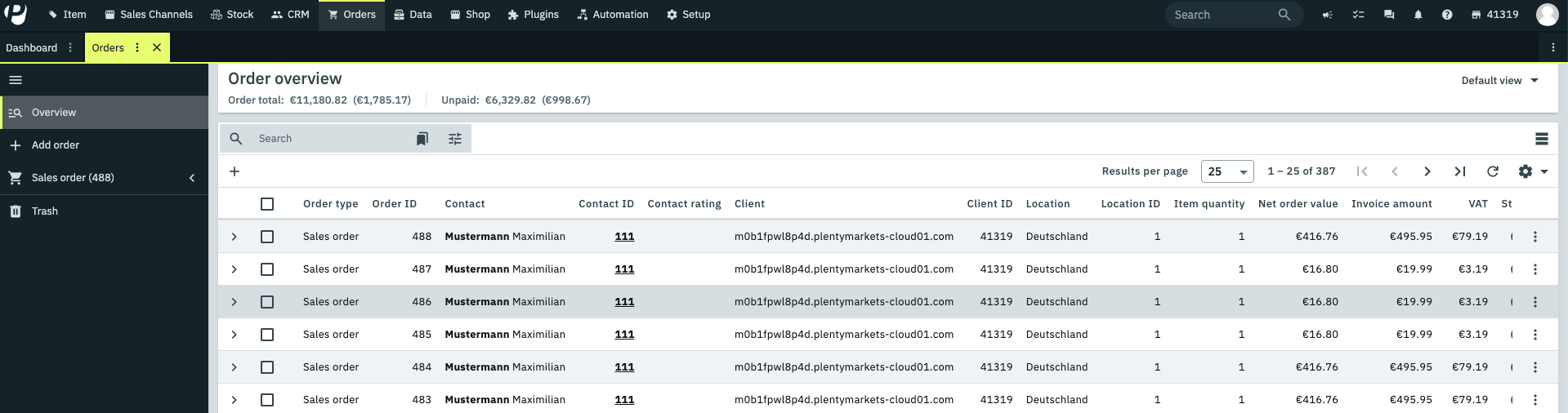
Select the order that you want to capture, select Cleared for shipping in Status and tags.
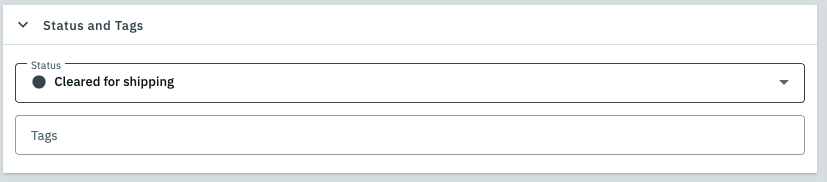
Click Save.
Refund a payment
In the shop backend, go to the Orders overview.
In the order overview, select the order that you want to refund and select Credit note disbursed in Status and tags.
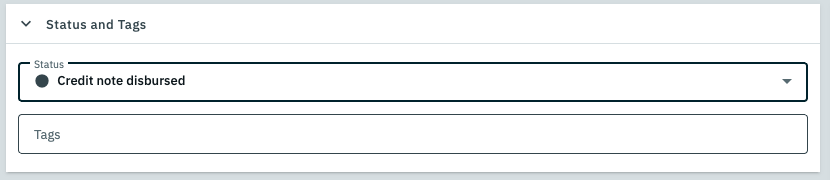
Click Save.
Cancel a payment
In the shop backend, go to the Orders overview.
In the order overview, select the order that you want to cancel and select Canceled in Status and tags.
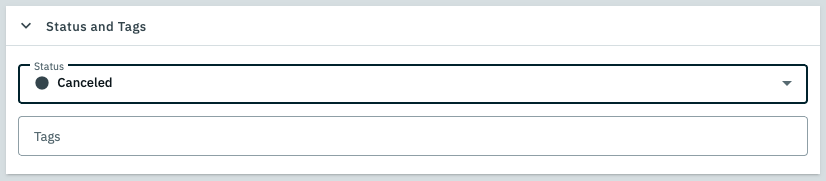
Click Save.
Check payment request response
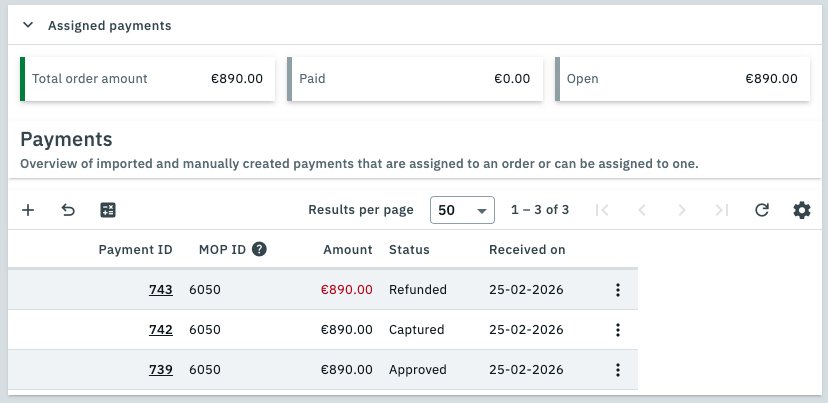
After doing one of the above actions, you should always check the Assigned payments section of the order to see if the payment request was accepted or not.
For example, if you captured a payment and there is only an Approved line, it means capture was rejected or has failed.
The same can be checked for refund and cancel.
Important: Always reload the page before you check the Assigned payments section to ensure you have the latest payment data.
For reference, this screenshot shows a successful authorize, capture and refund.
Choose other events for transaction management
Go to Setup > Orders > Events > Order change > Status change.
Select either Unzer Refund, Unzer Einzug or Unzer Cancel.
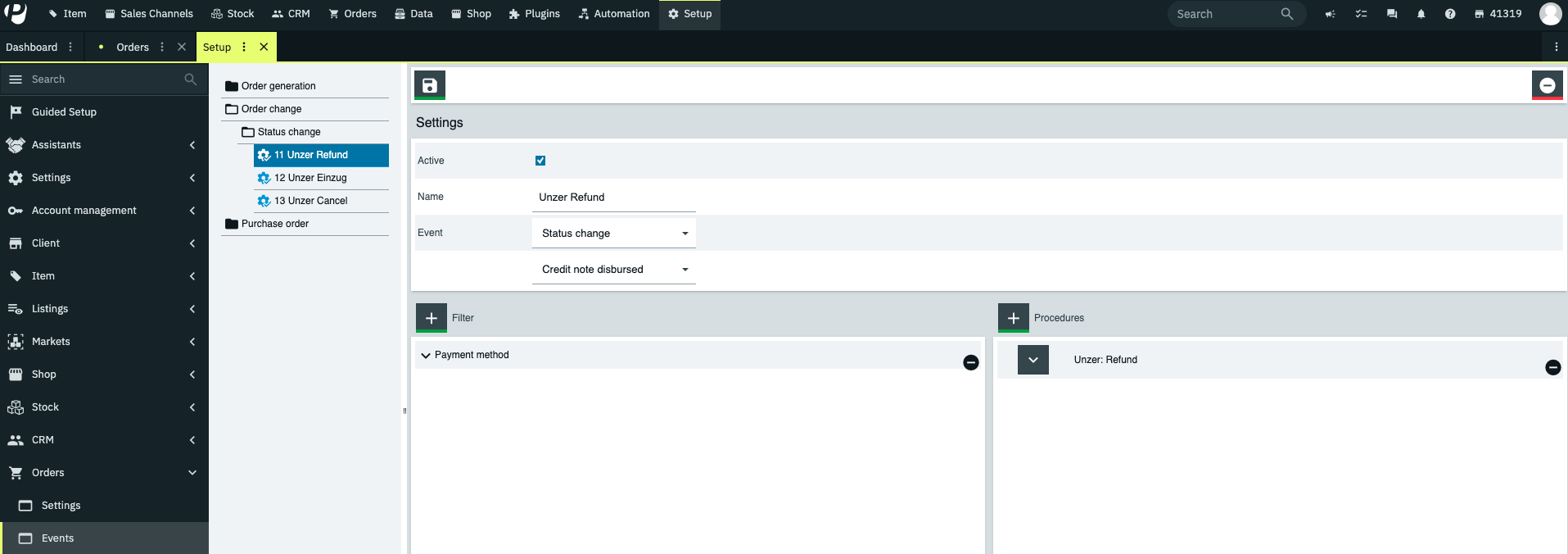
In the second dropdown in the Event section you can choose a different state to perform the selected event.
Click Save.
To learn how to manage payments, go to the Plentymarkets docs.