Payment Page Designer
Learn how to change the design of the payment page.
Before you begin
Before you begin, you should check out the default values for the standard payment page.
Design options
You can easily change the design of the payment page with the built-in payment page designer.
- Go to Extensions > Modules > Unzer Payment > Design customization.
- Update the fields to change the design.
- Preview your changes.
- Click Save to release your changes.
Please see the table below for explanations to each field or checkmark in the payment page designer.
| Parameter | Description |
|---|---|
| Shop name | Will display a shop name in the payment page. |
| Font | The font to be used throughout the Payment Page. |
| Header color | Changes the header color to the given value. |
| Footer color | Changes the footer color to the given value. |
| Brand color | The color to be used as base color, such as the button color. Other colors will be derived from this color. For example, interactive state colors such as hover, focus and pressed, selected, loader and component colors. |
| Text color | The color of text, icons and borders on the page. |
| Link color | This will affect the link color and the inverse link color. |
| Corner radius | The corner radius of elements in pixels. |
| Logo image URL | Will show the given logo image in the top left of the payment page. The following formats are supported: jpg, svg and png. |
| Enable shadows | Enable/disable shadows. |
| Hide Unzer logo | Show/hide “Secure checkout” instead of “Secure checkout by Unzer” in the bottom right corner of the payment page. |
| Hide basket | Show/hide the basket information within the “ORDER SUMMARY” section. |
| Basket background color | The color for the basket background. |
| Payment form background color | The color for the payment form background. |
Color picker
Not sure what hex codes are, or have you seen a color you like somewhere and don’t know the hex code? We got you covered.
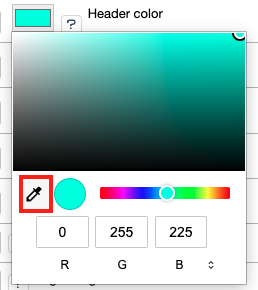
Next to each color style field, there is a colored button, click on it and then the color picker tool. Now click on the color you like and the payment page designer will insert the hex code for you.
Preview changes
Before you save and release your changes, always use the preview option. Click Open Unzer Preview to review your changes.